Quickly create a Sprite Screensaver
In relation to Axialis Screensaver Producer, this article offers information on the following topics:
- Open the built-in Explorer, select the files
- Build the screensaver
- Customize and compile the screensaver
- Download sample screensaver
Axialis Screensaver Producer features a built-in File Explorer that allows you to browse through your computer folders and preview thumbnails, enabling you to select files and swiftly generate a screensaver.
Open the built-in Explorer, select the files
1. In the menu, choose File/New/New Explorer (Ctrl+E). An explorer window opens in the application:
2. The window is divided in two parts. The separator can be moved using the mouse. On the left pane, use the folder tree to browse and find the desired folder 1. In the right pane, you see a thumbnail the media files present in this folder 2. Images and video files are shown with preview. You also see sound files (without preview).
3. Select the images files you want to add as sprite in your screensaver. It includes standard images, icons, cursors and animated GIFs. If you want to add a background music, select a music or sound file (MP3, WAV, MID...).
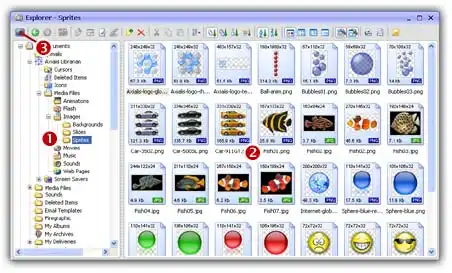
4. Click on the New Screen Saver Project From Selection (F7) button 3 or choose File/New/New Screen Saver Project From Selection in the menu.
5. A dialog box opens. Select Sprite Based Screen Saver option in the list. Click Next.
6. In this new dialog box, enter the screensaver title and some additional information (copyright, author...). Click Next when done.



Customize and compile the screensaver
7. The screensaver project window opens with all sprites added in the main edit zone. Select each sprite in the list and adjust the associated properties: motion, size & position, collision, transparency...
8. For example, if you want to create a bouncing sprite: Choose Straight Line and Bouncing on the edges of the screen options. Set the direction and speed of the sprite. We can do this by specifying 2 values: The Horizontal and Vertical speeds. Specify any data from -500 to +500. You can also randomize the speed (see options on right). When done, click OK.
9. We can take a look at the result full screen. Press F11 or click the Full Screen button in the toolbar. The screensaver is executed full screen. Press a key or move the mouse to end the full screen test.
10. Save your project by choosing File/Save or by pressing Ctrl+S.
11. Now you can compile your screensaver or compile and create an installation package.
With Axialis Screensaver Producer, you can quickly generate screensavers. Check out example screensavers below, which you can download to observe the outcome that can be achieved within a few minutes:

Company Logo
Shows how you can create a screensaver using a company logo image.
This simple screensaver contains one single sprite that moves horizontally at constant speed over a black background. The sprite size is 60% of the original picture but it is resized proportionally to the final screen.
This screensaver is a sample project that is included in Axialis Screensaver Producer. You can simply open and modify it to create your own version of this screensaver

Company Gears
Shows how you can create a screensaver using a company logo image with animated objects in background.
In background, several sprites are rotating in place at different speeds. They have a very low opacity value to create a watermark effect. The screensaver uses the hardware acceleration of the video card to make objects spinning.
This screensaver is a sample project that is included in Axialis Screensaver Producer. You can simply open and modify it to create your own version of this screensaver

I Love You 2023
Shows how you can create a lovely screensaver with a static text and many rotating and moving sprites in background.
42 sprites are 'blowing' and moving/spinning in random directions. The screensaver uses the hardware acceleration of the video card to make many objects spinning and moving without latency.
This screensaver is a sample project that is included in Axialis Screensaver Producer. You can simply open and modify it to create your own version of this screensaver

Space Cartoon
Shows how you can create a funny screensaver with a swingging and moving sprites in background.
Several sprites are swingging and moving in random directions. A large sprite in background rotates to create a rays-of-light effect. The screensaver uses the hardware acceleration of the video card to make many objects spinning and moving without latency.
This screensaver is a sample project that is included in Axialis Screensaver Producer. You can simply open and modify it to create your own version of this screensaver

Smiley Party
Shows how you can create a funny screensaver with a swingging and moving sprites.
Several sprites are swingging and moving/spinning in random directions. A background music creates a party effect. Smileys are bouncing on each others. The screensaver uses the hardware acceleration of the video card to make many objects swingging and moving without latency.
This screensaver is a sample project that is included in Axialis Screensaver Producer. You can simply open and modify it to create your own version of this screensaver