Search Icons you have on your Computer
In relation to Axialis IconWorkshop, this article offers information on the following topics:
Many files containing icons are present on your computer's hard disks. Axialis IconWorkshop includes a search feature to help you locate and grab these icons.
Searching for files on your computer
1. Choose Edit/Search/On the Computer or press Ctrl+G.
2. A search option dialog box opens. In the "Named" zone 1, specify a filename search criterion. If the filename contains a portion of the specified text, the file is selected. You can also use the standard DOS characters '*,?'. Example : Image*.*
3. In the "Look In" zone 2, specify the folder from which you wish to start the search. If you want to perform a deep search (including subfolders), select the Include Subfolders option.
Note
If you specify folder "C:\" with subfolders, the whole disk will be scanned. This can be a very long process!
4. In the "Type" list 3, specify the type of file you wish to find ("All Icon Files").
5. You can also specify Date and Size options (4 and 5).
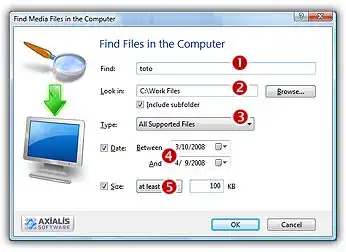
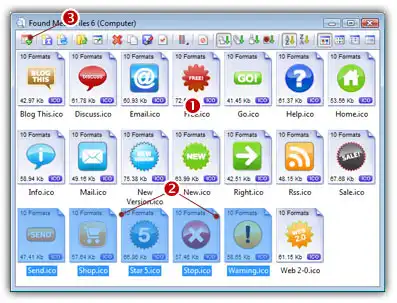
6. When done, click OK. The search begins... When finished, a Search Results window opens, containing the found items 1:




Grab the Icons, add them to the Librarian
1. Create a new Icon Library in the Librarian (or select an existing one). Select the items you wish to add to the library 2.
2. Choose File/Add to the Librarian or press F3 3. The files are added.