Use StuffIt Expander to Read Macintosh Icons
In relation to Axialis IconWorkshop, this article offers information on the following topics:
- Installing and Configuring StuffIt Expander for Windows
- Uncompressing a SIT/HQX Archive File
- Uncompressing Macintosh icons packed in a ZIP file
Most of the websites which propose Macintosh icons to download, provide them in archives using SIT/HQX packed file format. This file format is widely used by Macintosh users.
To uncompress these archive files under Windows, you need a specific tool: StuffIt Expander for Windows. Click to visit StuffIt website and download the software. This how-to procedure has been designed for version 9.0 of StuffIt Expander.
You can either purchase the full version which is required to compress files and create SIT archives or download the "StuffIt Standard Free Trial". They both contain the StuffIt Expander portion which is free and permit to extract files from SIT archives.
Installing and Configuring StuffIt Expander for Windows
1. Download the StuffIt Expander program from this page: http://www.stuffit.com/. Click the "Download NOW" button. Launch the installation program you've downloaded. Follow the procedure as usual.
2. Once installed, start the program: Start/Programs/StuffIt/StuffIt Tools/Expander. The StuffIt Expander main window opens.
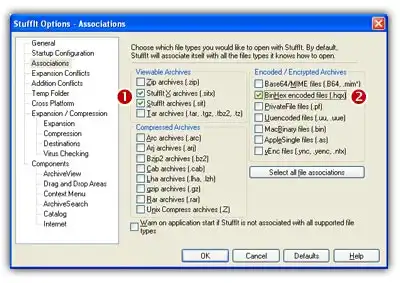
3. In the main menu, choose Edit/Application Options. A dialog box opens, select the Associations tab. Select at least "StuffIt Archives" 1 and "BinHex Encoded Files" 2. If you don't want to associate the other archive types to StuffIt (ZIP, ARC, ARJ, RAR...), unselect them.
Note
We recommend you to remove the association with MacBinary (BIN) files because IconWorkshop supports this type directly.
4. When done, select the Cross Platform tab:
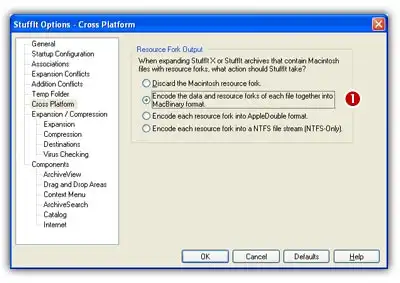
5. Select the option "Encode the data and resource forks of each file together into MacBinary format" 1. It means that the files will be extracted as MacBinary which is a format fully supported by IconWorkshop. For more information on MacBinary format, see this topic.
6. When done, click OK. The program is now installed and properly configured.






Uncompressing a SIT/HQX Archive File
1. Open Windows Explorer and browse to the folder in which you saved the archive file.
2. Double-click on the archive file. The StuffIt program starts and automatically uncompress the archive contents into a subfolder.
3. Now you can browse the newly created subfolder to see the Macintosh icons. We recommend you to use IconWorkshop built-in explorer (Ctrl+E) to browse it and see the Macintosh icons in preview thumbnail.
Uncompressing Macintosh icons packed in a ZIP file
More and more website now propose to download Macintosh icons in ZIP archives. You can simply extract them with any ZIP unpacker (StuffIt support this format too). The unpacked files will be read without problems by IconWorkshop.