Quickly create a Video Screensaver
In relation to Axialis Screensaver Producer, this article offers information on the following topics:
- Open the built-in Explorer, select the files
- Build the screensaver
- Customize and compile the screensaver
- Download sample screensaver
Axialis Screensaver Producer features a built-in File Explorer that allows you to browse through your computer folders and preview thumbnails, enabling you to select files and swiftly generate a screensaver.
Open the built-in Explorer, select the files
1. In the menu, choose File/New/New Explorer (Ctrl+E). An explorer window opens in the application:
2. The window is divided in two parts. The separator can be moved using the mouse. On the left pane, use the folder tree to browse and find the desired folder 1. In the right pane, you see a thumbnail the media files present in this folder 2. Images and video files are shown with preview. You also see sound files (without preview).
3. Select the video files you want to add in your screensaver. A video screensaver can include several video files that will be played in sequence. Be careful of the final size of your screensaver though!
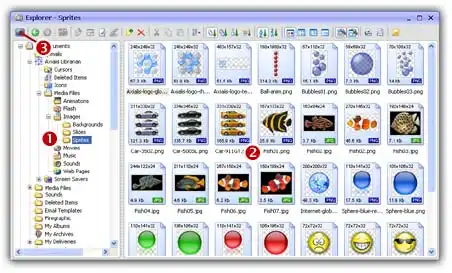
4. Click on the New Screen Saver Project From Selection (F7) button 3 or choose File/New/New Screen Saver Project From Selection in the menu.
5. A dialog box opens. Select Video Based Screen Saver option in the list. Click Next.
6. In this new dialog box, enter the screensaver title and some additional information (copyright, author...). Click Next when done.



Customize and compile the screensaver
7. The screensaver project window opens with all the files added in the video list. Now you can simply adjust display settings of the screensaver. To learn more about video screensavers, see this tutorial.
8. We can take a look at the result full screen. Press F11 or click the Full Screen button in the toolbar. The screensaver is executed full screen. Press a key or move the mouse to end the full screen test.
9. Save your project by choosing File/Save or by pressing Ctrl+S.
10. Now you can compile your screensaver or compile and create an installation package.
With Axialis Screensaver Producer, you can quickly generate screensavers. Check out the example screensaver below, which you can download to observe the outcome that can be achieved within a few minutes:

Earth
This sample screensaver projects shows how to create an endless movie screensaver based on a loop video clip. The movie is displayed fullscreen in zoom mode (no background displayed on all screen formats).
Video by Seb Agora - ©2022 all rights reserved. The video file was downloaded via Pixabay and optimized for the screensaver. If you want to get more videos or full resolution versions you can visit Pixabay or contact Seb Agora at: https://pixabay.com/users/seb_agora-13890949